
Inspector & Properties
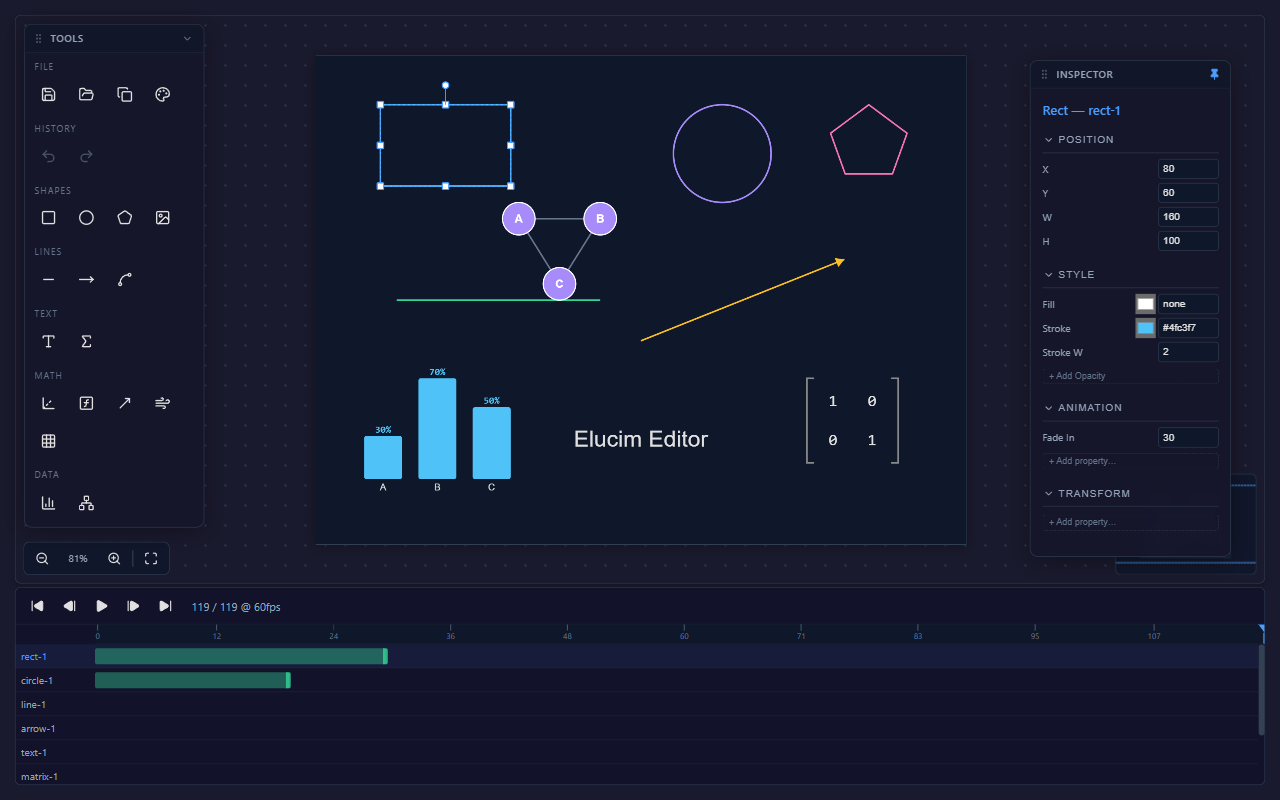
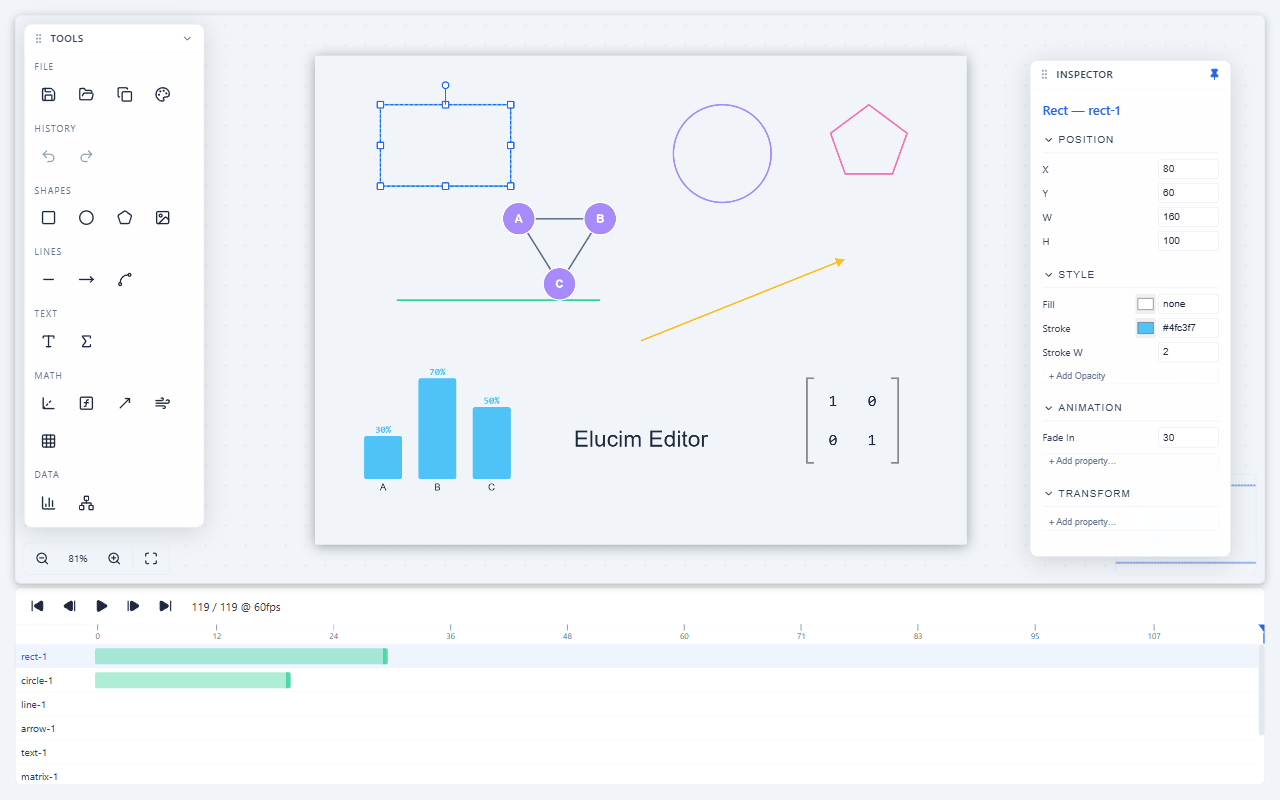
The inspector is the contextual property panel on the right side of the editor. It edits the selected canvas or element immediately, while timelines and state machines own animated changes over time.
Selection behavior
Section titled “Selection behavior”| Selection | Inspector behavior |
|---|---|
| Canvas | Shows scene dimensions, background, fps, and playback duration when applicable. |
| Single element | Shows element-specific fields, position, style, transforms, and child/group details. |
| Multiple elements | Shows multi-selection state and group actions. Arrangement actions are also available from the context menu. |
| Nothing selected | Shows the empty selection state. |
The right panel can be hidden, restored, and resized from the top bar. Canvas clicks select the canvas root; Escape clears selection.
Element fields
Section titled “Element fields”Element-specific fields appear first so common edits are easy to reach:
| Element type | Common fields |
|---|---|
| Text | content, fontSize, fontWeight, fill, textAnchor |
| LaTeX | expression/color/font sizing fields |
| Rect/Image | x, y, width, height |
| Circle | cx, cy, r |
| Line/Bezier Curve | endpoint/control point, stroke, line style, and cap fields |
| Graph/Bar Chart/Matrix | structured arrays edited with purpose-built array editors |
| Group | child list, parent path, and ungroup action |
The Position, Style, and Transform sections handle common spatial and visual properties. Transform fields map to the normalized element layout where possible, including rotation, rotation origin, scale, translate, and z-index.
Canvas properties
Section titled “Canvas properties”Select the canvas to edit scene-level values:
| Property | Description |
|---|---|
| Width / Height | Logical SVG scene size. |
| Background | Scene background color or token. |
| FPS | Playback frame rate. |
| Duration | Shown for linear playback contexts; timeline duration belongs to timelines. |
For Elucim Documents, timing should live in timelines and stateMachines, not in per-element wrapper props.
Motion editing boundary
Section titled “Motion editing boundary”Use the inspector for an element’s static starting state. Use the motion panel for animated changes:
| Motion concept | Where to edit |
|---|---|
| Timeline duration | Animations motion tab, selected timeline details |
| Tracks | Animations motion tab |
| Keyframes | Animations motion tab details pane |
| Easing | Animations motion tab keyframe controls |
| State machine states | State machines motion tab graph |
| Transitions / triggers | State machines motion tab graph and details |
The inspector does not create wrapper animation props. Motion is authored in timelines and state machines.
Objects and nested selection
Section titled “Objects and nested selection”The left Objects tab is the fastest way to inspect a dense scene. It shows root canvas, nested groups, generated IDs, element types, and semantic roles from Elucim Document data. Double-click a row to rename an element. If a selected element is inside a group, the inspector header shows its parent path and lets you jump back to the parent.
Image fields
Section titled “Image fields”When onBrowseImage is provided, image fields include a browse button. A selected asset can store:
srcfor direct URL/data URI rendering.reffor host-managed asset lookup.displayNamefor editor display.widthandheightfor initial sizing.altfor future accessibility metadata.
See Image Assets for resolver integration.
Context menu
Section titled “Context menu”Right-click the canvas or selected elements for operations that do not belong in every inspector state:
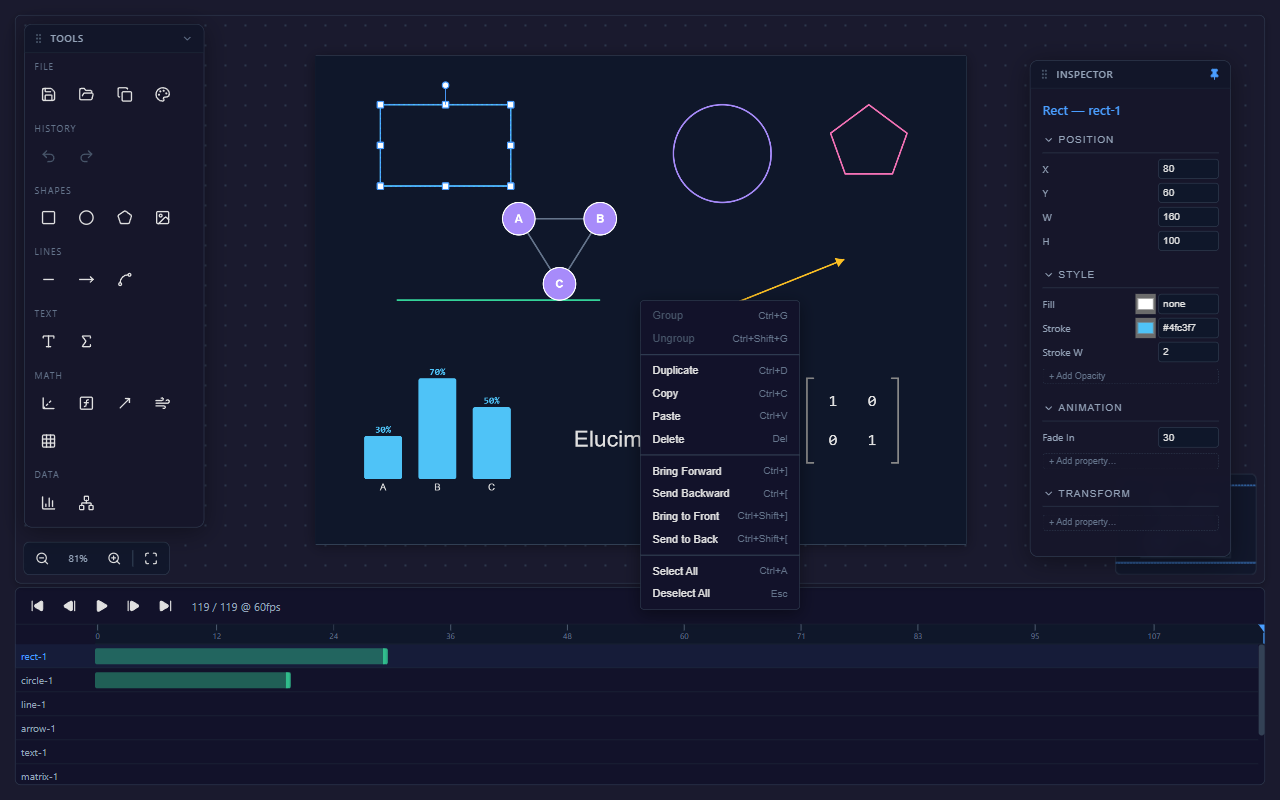
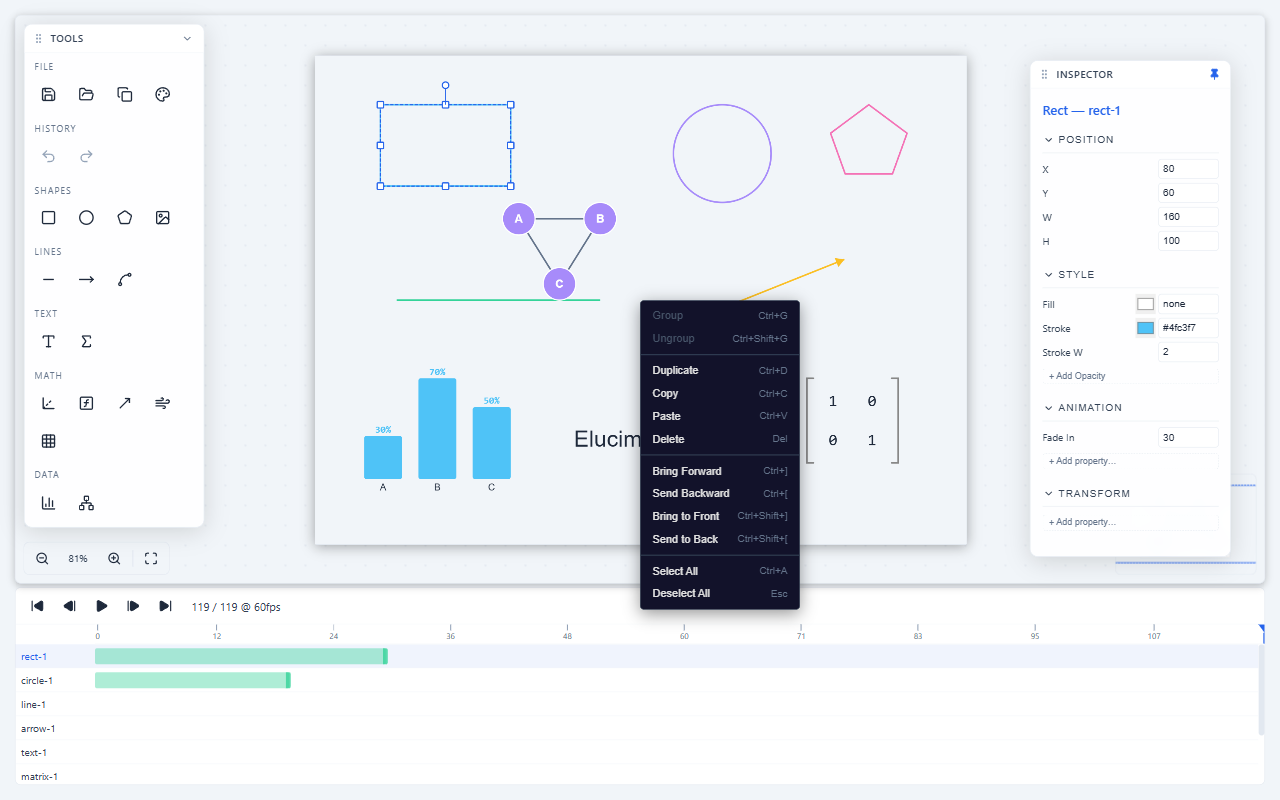
The context menu includes group/ungroup, duplicate, copy, paste, delete, Object order, align, distribute, select all, and deselect all.
Next steps
Section titled “Next steps”- Back to the Editor Overview.
- Customize colors with Editor Theming.
- See the Editor API Reference.